
Adding a Family Member to StaffHub
Log in as an Org Admin
Select "Residents" then “Family members” on left column of the screen
Select “Add New” on top right corner
Add all needed information
Resident name
Add Family name, email, phone number, relationship status
Select what applies (“Add as user to Family App” - Financial EPOA / Next of Kin - Can invite family members)
If you select "Add user to Family App", member will automatically receive an email to create their account (see below for more information)
Click on “Add user”
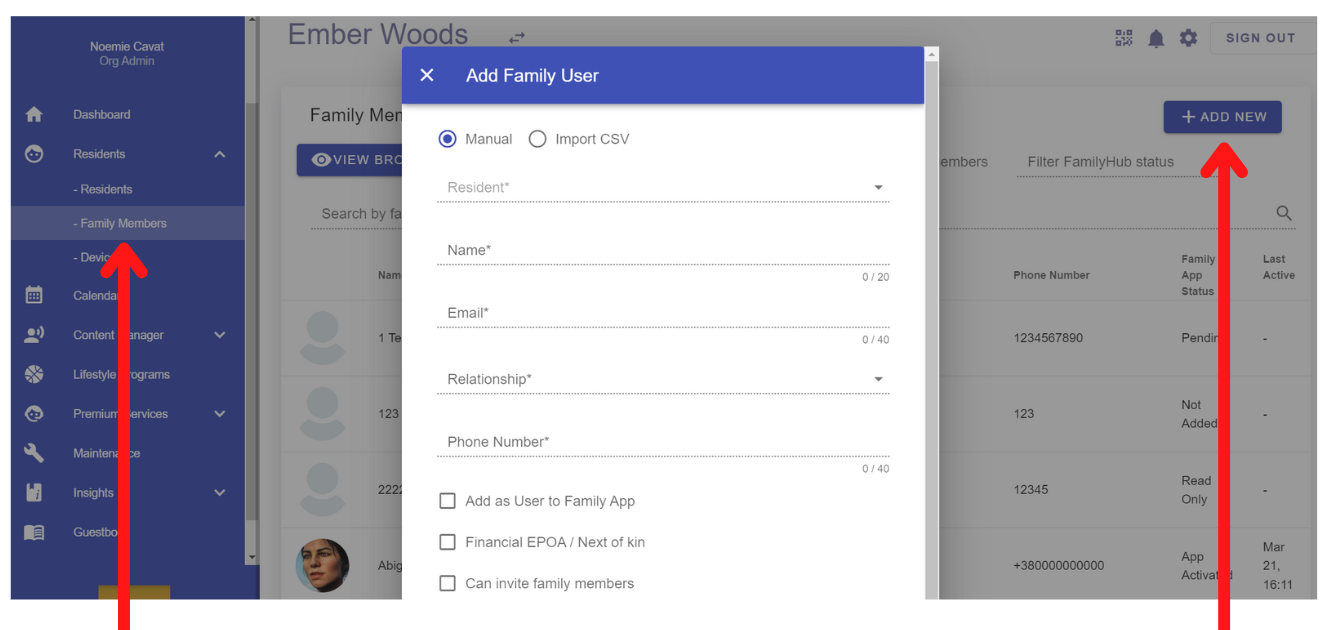
Select "Add user to Family App" so the Family member will automatically receive an email to create their account.
Adding a Family Member to the App
Adding a Family Member from scratch
When adding a Family member on StaffHub and ticking off “Add as User to Family”, they will automatically receive an email to create their account.
A few things need to be checked out first in order for this process to go flawlessly.
Checking that the Automated Family User invite is set up correctly
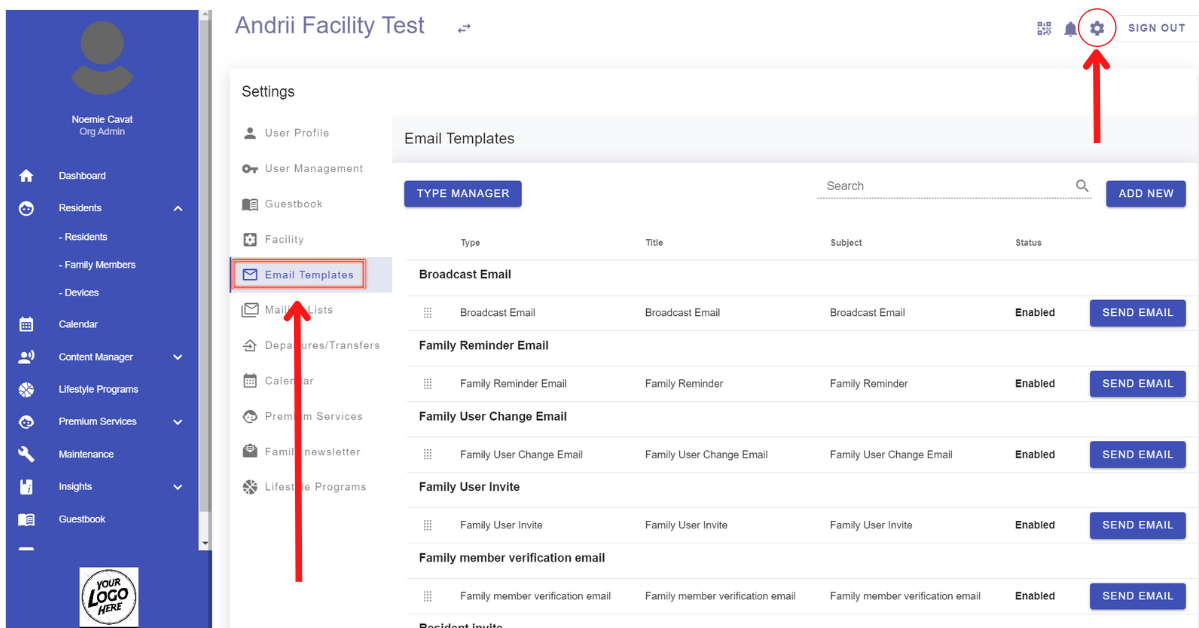
Access Settings on the homepage
Select “Email templates” on the left handside
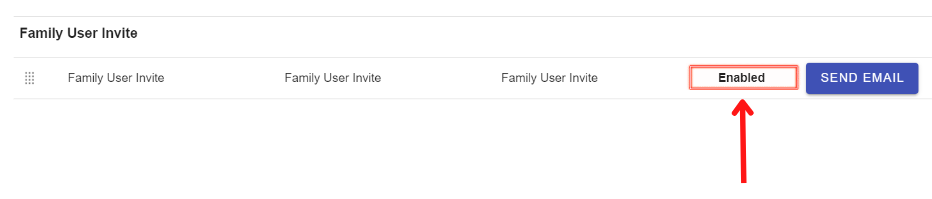
Look for “Family user invite” and check that the status is set as “Enabled”
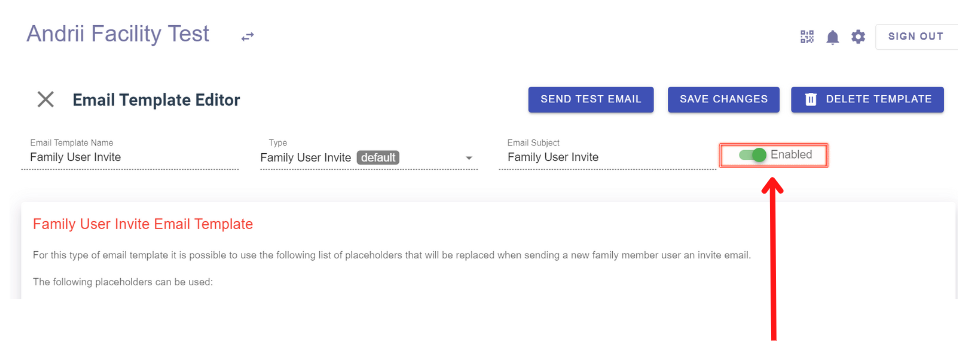
If the status is “Disabled”, click on the “Family user invite” email, and toggle on the “Enable” button and Save the changes. It should appear green when on. Grey when off.
Adding a Family Member to the App but who is already in StaffHub
If a Family member is already in the list of Family Members on StaffHub and say they have not been added to the App, it may be because when their profile was created, the “Add to Family App” tick box wasn’t checked. This can be confirmed by:
Login into StaffHub
Selecting “Family Members” in the “Residents” dropdown menu
Looking for the Family member by name or email address
Clicking that Family member
“Add as user to Family App” tick box will show under the name, email address and Phone number
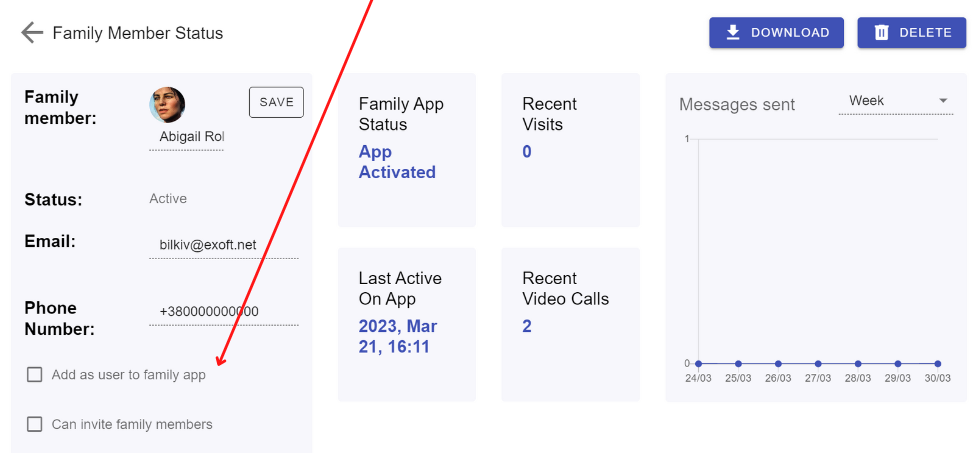
To tick the box, click on “Edit”, tick the box and “Save” the changes.
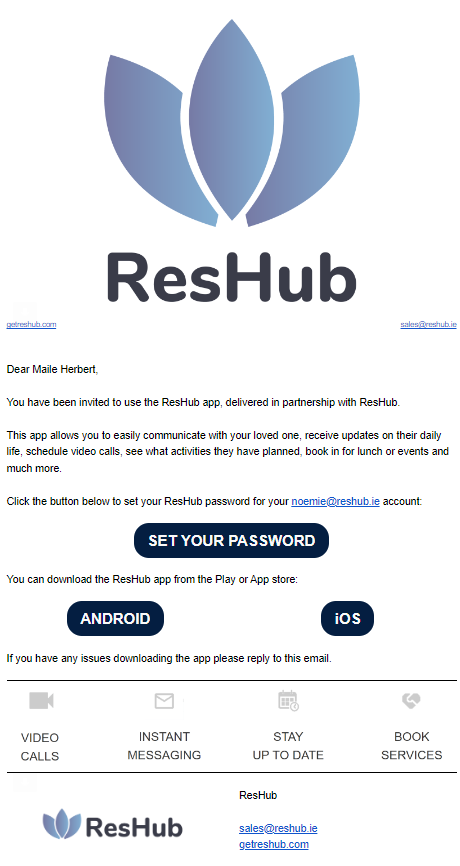
After selecting “Add as User to Family” and creating the Family member’s profile, the Family User invite email will automatically be sent to the person.
They will be able to create their Password and download the App on either Android or iOS based on the device they use.
CONTACT US
For all technical issues or questions, do not hesitate to contact our Support team support@getreshub.com