
StaffHub supported Devices
StaffHub - Laptop & Computer
StaffHub can only be accessed via
Laptop/Computer at staff.reshub.ie to:
Create Calendar event/Lifestyle programs
Day/Week/Month Calendar view
Print Calendar
MyHub - Tablet
MyHub for staff
Installed on a tablet to:
Take attendance
Take pictures
Upcoming events
Logging into MyHub on Tablet
Ensure your tablet is connected to Wi-Fi before starting the process
Screenshot any issues that occur during the login process and email support@reshub.ie
1st step is to login on StaffHub, on your laptop/computer:
Ensure you are logged into StaffHub (on laptop or computer) - staff.reshub.ie
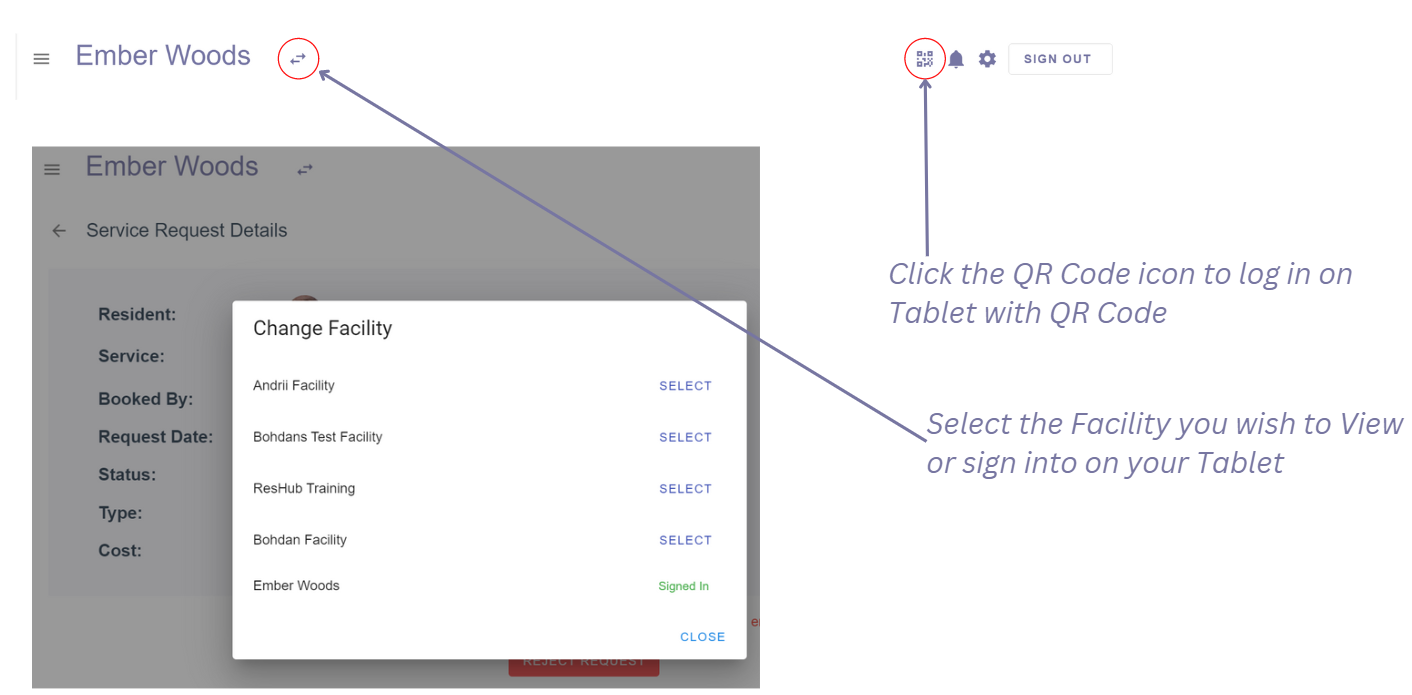
On the StaffHub homepage, select the QR code icon on the top right corner of the page
Enter your account password and you will get a pop up window with your QR Code
2nd step happens on your tablet:
You can either:
Manually login by entering your credentials
Scan the QR code given on the pop up window on your laptop
TECHNICAL INFORMATION
Where to find the name of your Tablet:
Double tap your tablet screen
A little pop up window will appear on the right hand side of your screen - tap the (i) (info button)
Click on "Exist kiosk"
Find "Device name" at the bottom of the window
Where to find the Wifi settings:
Double tap your tablet screen
A little pop up window will appear on the right hand side of your screen - tap the (i) (info button)
Select “Settings”
Select “Wifi”
CONTACT US
For all technical issues or questions, do not hesitate to contact our Support team at support@getreshub.com